Once you have used the new version of ECoin for the first time, you will notice that the functionality is very similar but improved on the original version. The look and feel of the product has changed too and is now far more contemporary than the original.
All McOpCo restaurants, Operations hierarchy and department personnel use ECoin on a daily basis and in total there are in excess of 1,000 users within the UK.
ECoin (Electronic Commerce over the Internet) is a global McDonald’s solution committed to improving business processes through the use of technology.
The ECoin system works in conjunction with each country’s financial systems to electronically route invoices to the relevant person for approval.
In addition, payments processed in the UK’s financial systems will be available in ECoin for suppliers to view the status of their invoices by using a self-service supplier module.
Accessing ECoin is exactly the same as before which is as follows:
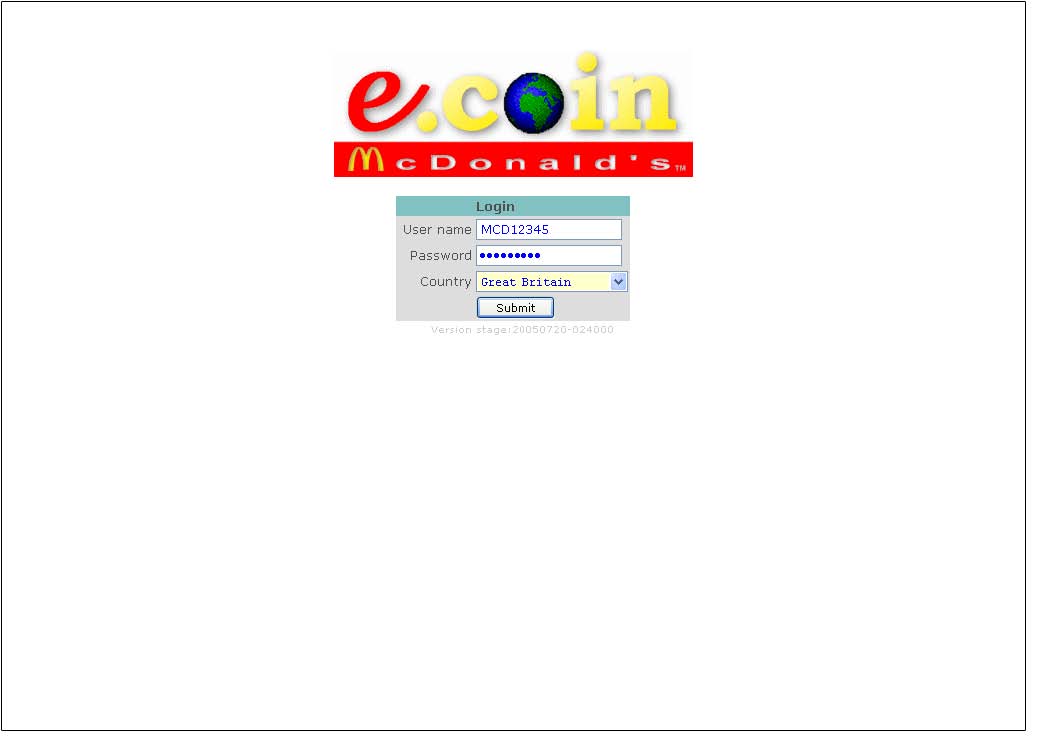
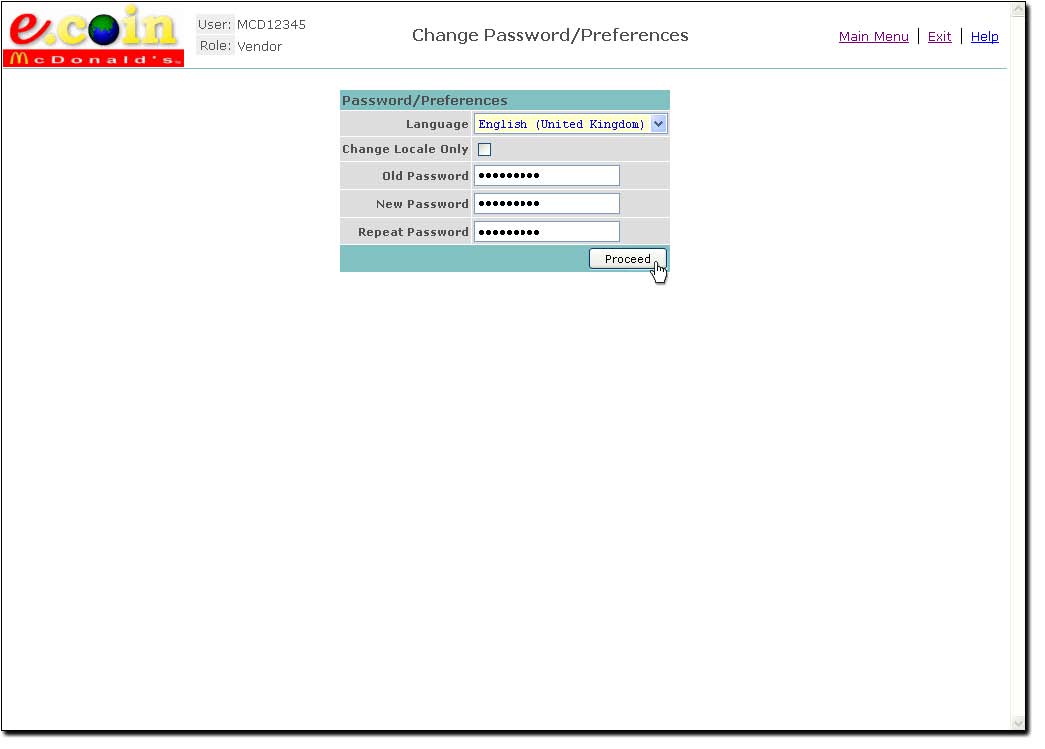
The first time you login you will be prompted to immediately change your password.
The rules for passwords are as follows:
|
Problem |
Resolution |
|
|
|
|
How do I change my password? |
There is a menu option that allows users to change their password To be able to change your password you must know your current password. The rules for passwords outline above also apply to any new password. |
|
What if I have forgotten my password? |
Contact your normal Helpdesk. They will notify you of your new password via email. |
|
After login in you see a page with an error message ‘Invalid application User Name’ |
An incorrect user name or password was entered. Use the back button on the internet browser to return to the login page with the large ECoin logo and re-enter your login details. |
|
Should capital or lowercase letters be used? |
The system will accept both types of characters, however, the login is case sensitive. |
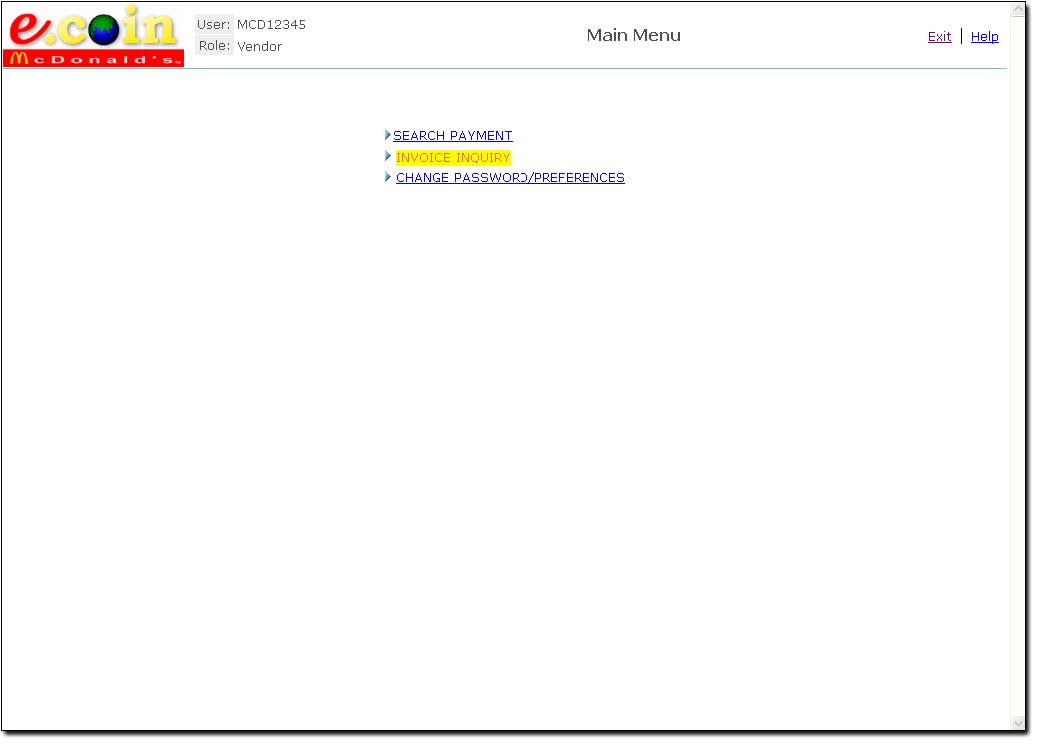
Invoice Inquiry allows you to search for and view past invoices. From the main menu select the second option INVOICE INQUIRY; this will open the Search Invoice page where you can enter your search criteria.
An invoice search requires specifying a value or a range of values for one or more of the following field names:
|
|
|
|
|
|
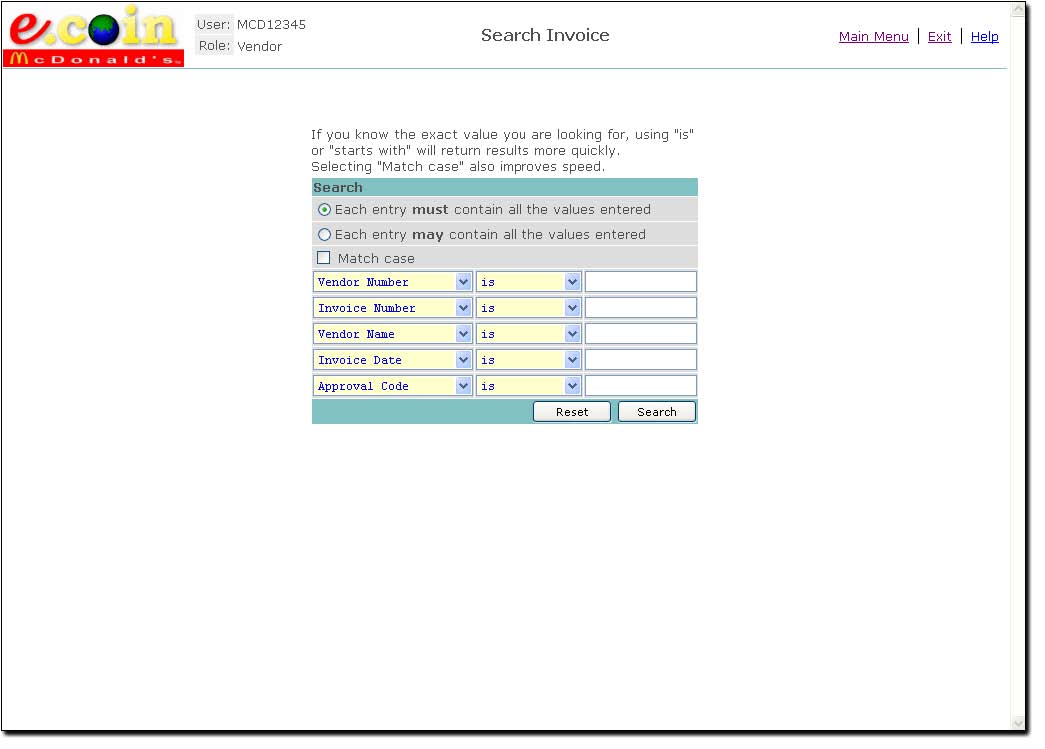
To search on a field select it from any of the drop-down lists in the first column, then select the type of comparison from the second column and enter a value in the last column. The available options for the comparison type are:
|
Must be exactly equal to the value. |
|
Anything but the value. |
|
Will return any invoice where the field text contains all or part of the value. |
|
Will return any invoice where the field text starts with the value. |
|
Will return any invoice where the field text ends with the value. |
|
Returns invoices where the field is larger than the value. |
|
Returns invoices where the field is lower than the value. |
|
Used with date or invoice number fields, returns invoices where the field date is greater than the value. |
|
Used with date or invoice number fields, returns invoices where the field date is lower than the value. |
Ticking the Match case option ensures that invoices are returned only if they exactly match the text entered. Not selecting the Match case option may be useful if you require the search not to be case-sensitive, but will produce a slower response.
The option above Match Case only applies if you are searching on more than one field. Selecting the option Each entry must contain all the values entered will limit the search results to only invoices that match all criteria The second option will show any invoices that match one or more of your criteria.
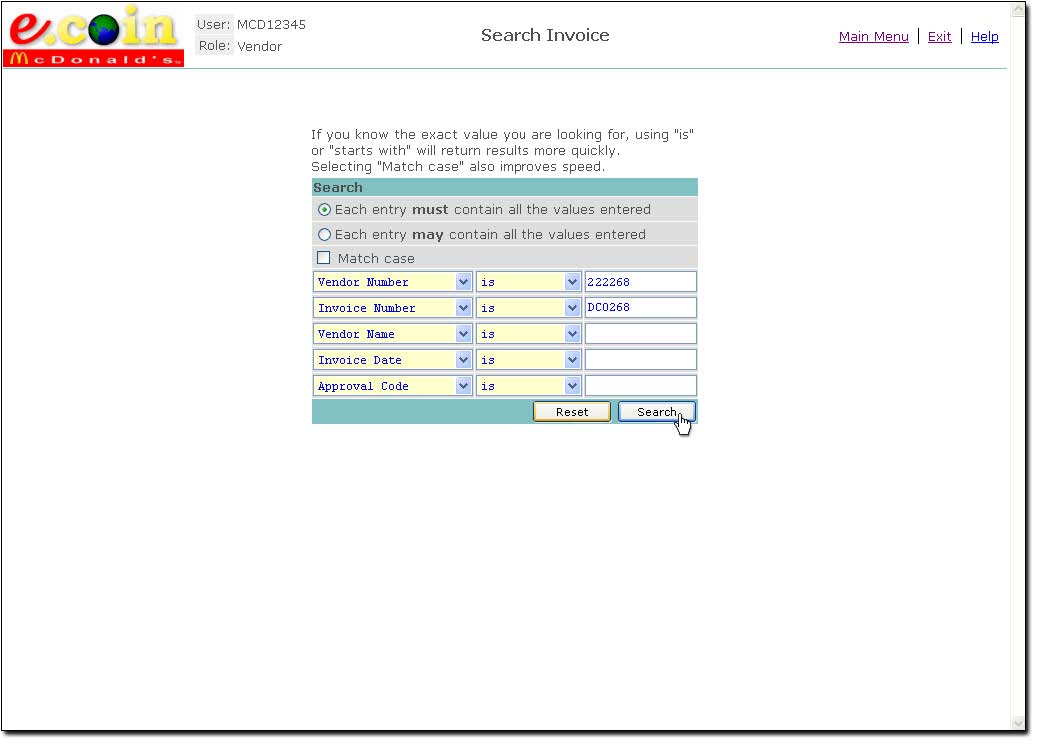
The above example would only return invoices where the vendor number is 222268 AND the invoice number is DC0268 or dc0268.
Once you have finished entering your search options click on the Search button to view the results. These will be displayed in a list.
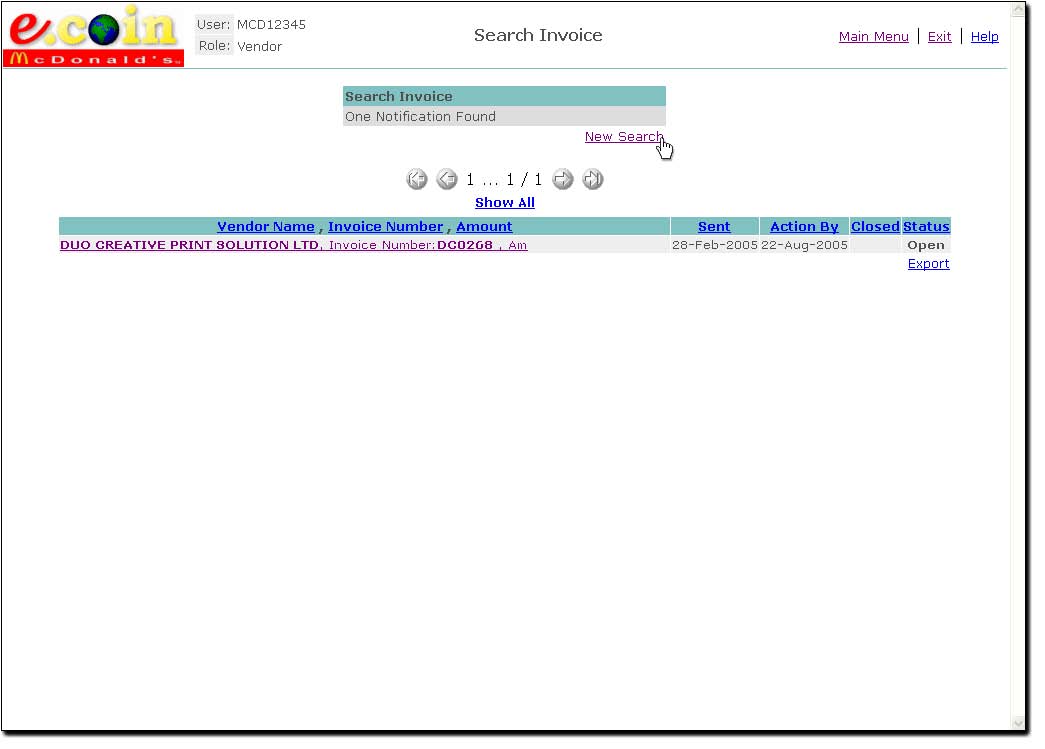
To perform a new invoice search just click on the New Search link near the top of the page.
Click on an item from the result list to see further details (discussed in the following chapter).
The most common problem is receiving the following error message: ‘No matching records found’ instead of a list of results after clicking the Search button. This could simply be because you made a mistake entering your criteria or mistyped a value. Also check the format of any date values, they must be in the form of DD-MON-YYYY.
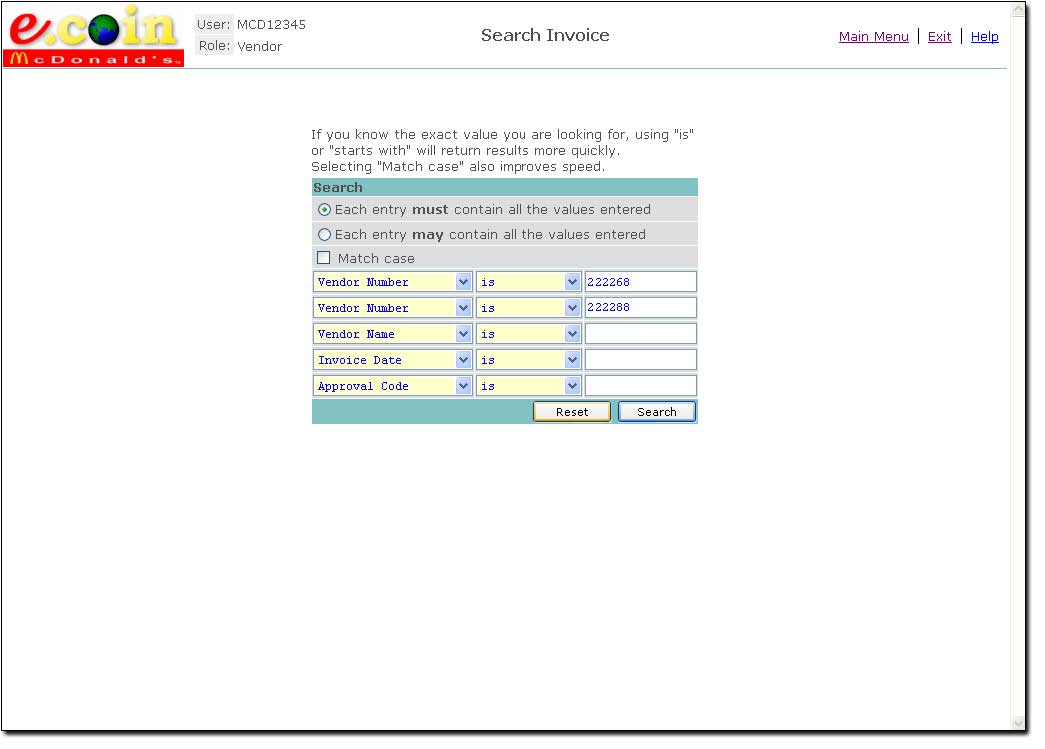
Be careful that when selecting more than one criterion that you do not make selections that are impossible. The example below would not find any records because no vendor could have a vendor number of 222268 and 222288 at the same time. Either change the Each entry must contain option to Each entry may contain or perform two separate searches.
Once you have the results from your search you can then look at the details behind the invoice and also view the history of its movement through the ECoin system. To do this, click on the item of interest (shown below highlighted in yellow).
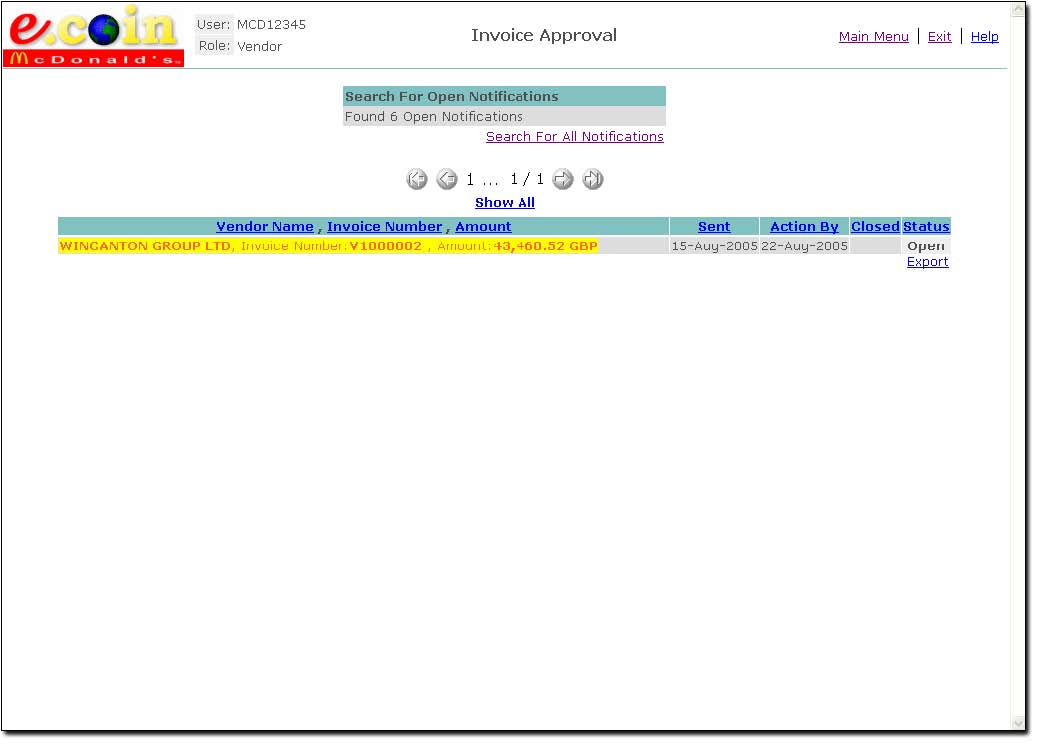
You are then taken direct to the Invoice details page as shown on the next image:
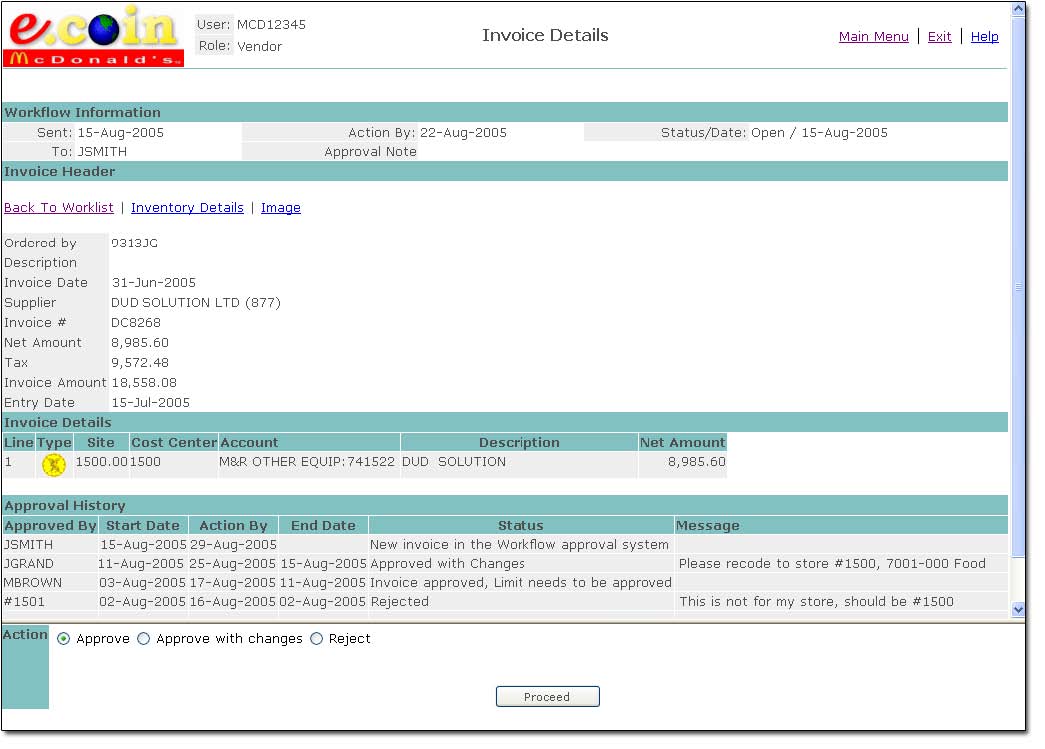
The page is split into two sections. The upper section shows the Invoice Header, Invoice Details and Approval History whilst the lower section is to be ignored for inquiry mode (and can be resized to not intrude on the other information).
Use the scroll bars to view all the information if it does not fit onto one page.
Workflow Information Section gives you the details of the current status.
Invoice Header gives summary invoice information and links to further invoice details (Image or EDI Inventory).
Invoice Details shows the account codes.
Approval History section shows the history of the invoice as it has progressed through the ECoin system. It contains the following fields:
|
Field Name |
Description |
|
|
|
|
Approved By |
To whom the invoice has been passed. |
|
Start Date |
When the invoice moved to the new approver. |
|
Action By |
The date that the invoice should be approved/actioned. |
|
End date |
The date that the invoice finished at that level. |
|
Status |
Action required/taken at each step. |
|
Message |
Shows both the system and user messages associated with the invoice. |
Search Payment allows you to search for and view past payments. From the main menu select the second option SEARCH PAYMENT; this will open the Search Invoice page where you can enter your search criteria.
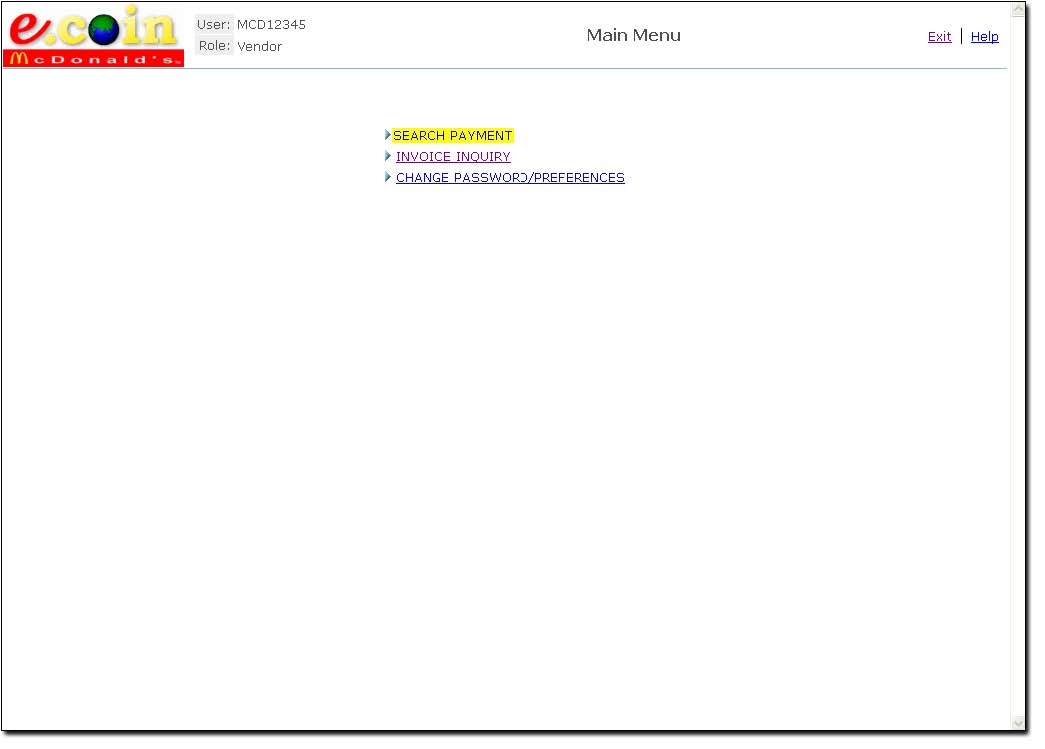
A payment search requires specifying a value or a range of values for one or more of the following field names (you are restricted to viewing only payments made to your company):
|
|
The Payment date must be the date which McDonald’s Restaurants generated the payment. A payment run is normally generated every Thursday for the invoices approved that week.
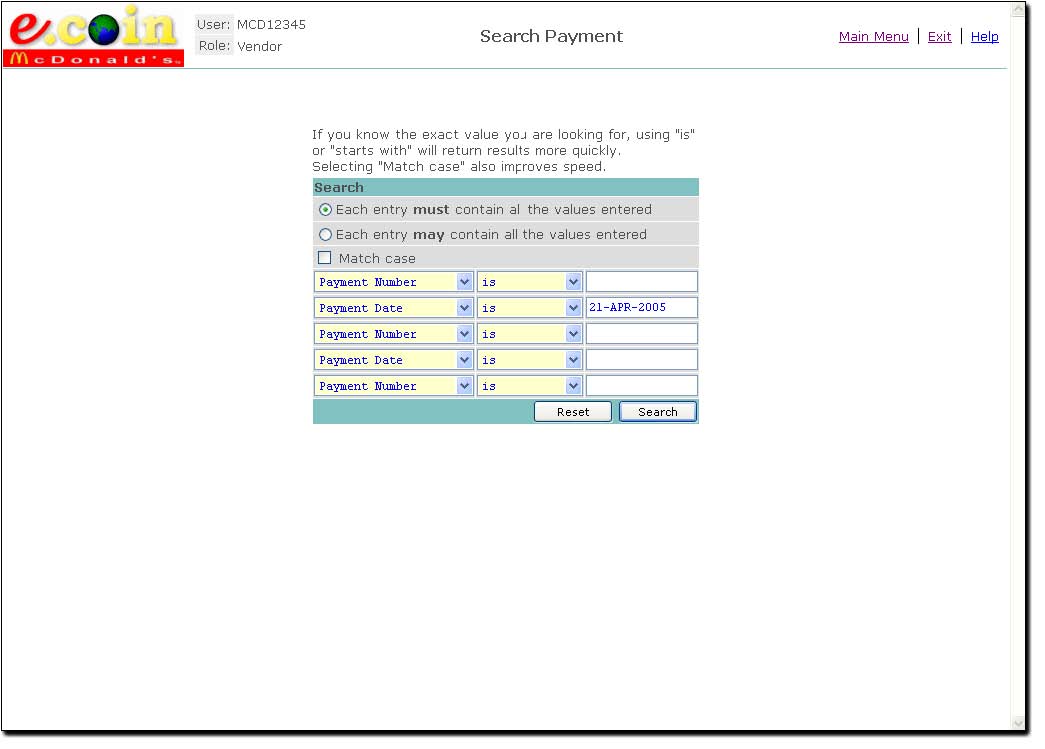
The above example would only return payments generated on 21st April 2005.
Once you have finished entering your search options click on the Search button to view the results. These will be displayed in a list.
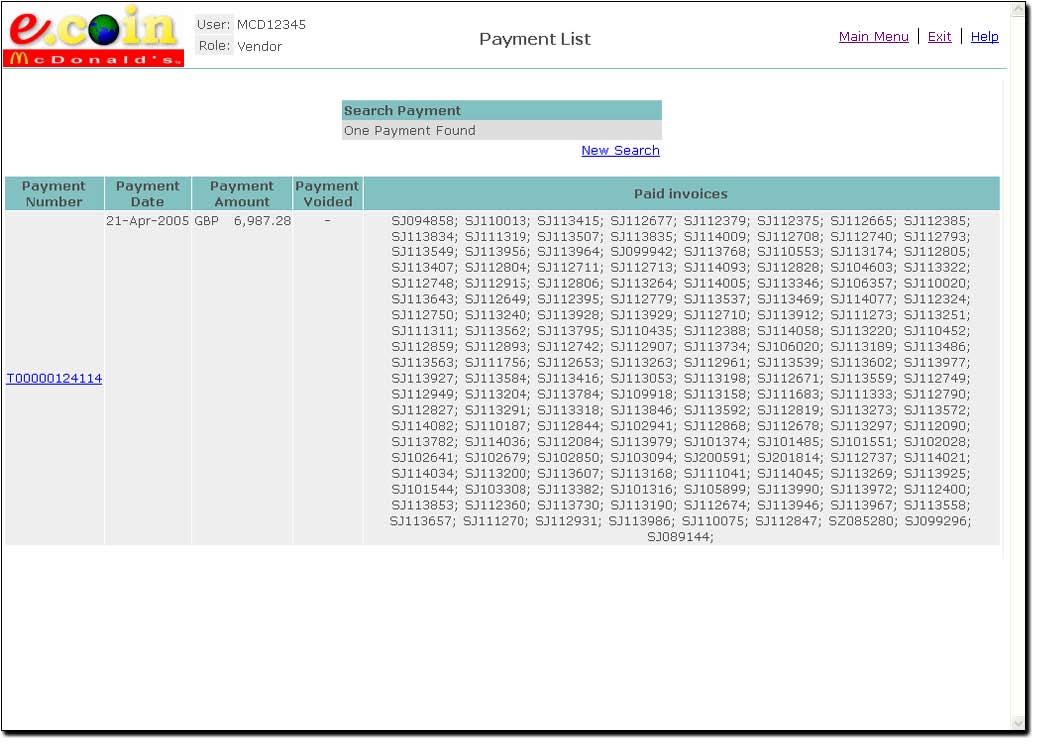
To view further Payment details (and enable a download of the paid invoice numbers and values) click the Payment Number of the item required.
To start a new search, click on New Search in the top middle of the window.
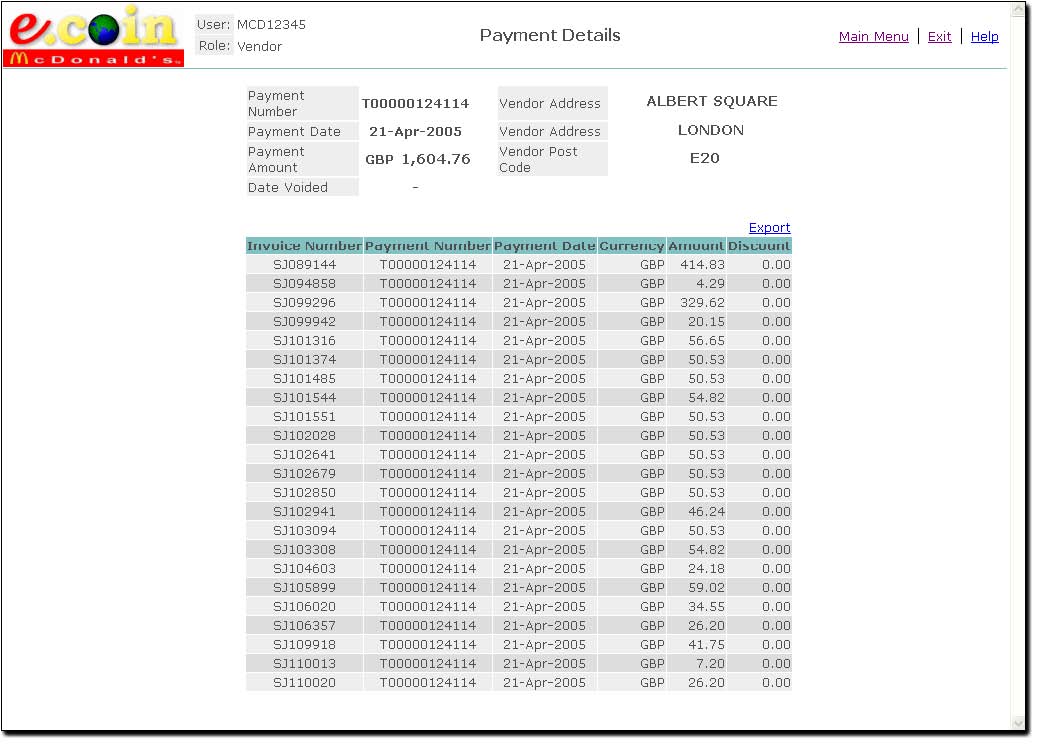
The list of paid invoices can be downloaded into an Excel Spreadsheet by one click on the Export link at the beginning of the paid invoice list (above discount).
If Excel is not open, it will open and create a spreadsheet automatically.
If Excel is open already it will create the list automatically, but you will have to navigate to the spreadsheet.